

Two-factor authentication, on every plan
Turn on two-factor authentication with an authenticator app: after your e-mail code, password or Google sign-in, Vailo asks for a 6-digit code before the workspace opens. Free on every plan.
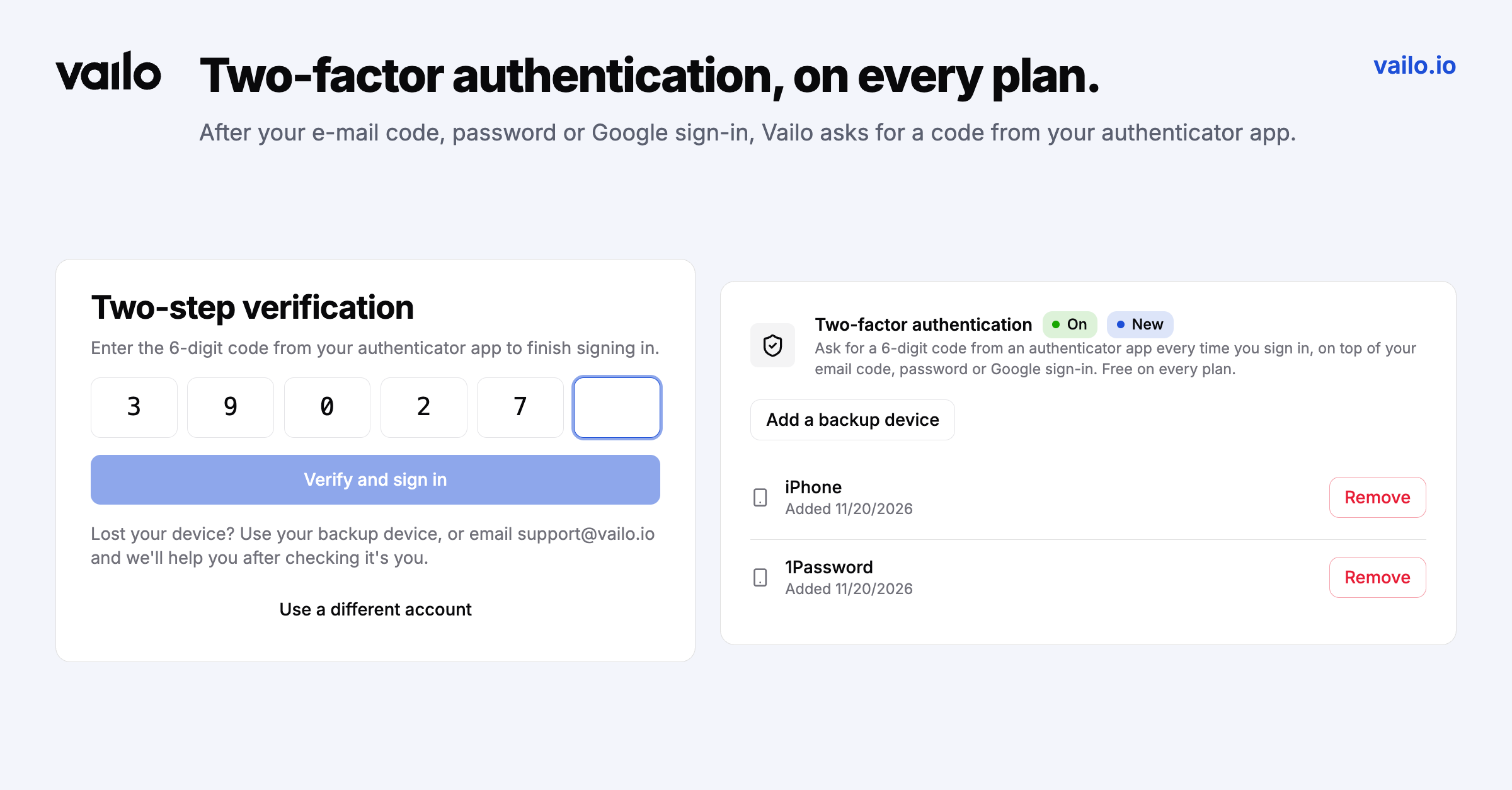
Your board holds client names, plans and hours. A password, or even a sign-in code sent to your inbox, is one lock. Now you can add a second one, on every plan.
Turn it on
Go to Profile > Security and choose Turn on. Name the device, scan the QR code with an authenticator app such as Google Authenticator, 1Password or Authy, and confirm with the 6-digit code the app shows.
Signing in
After your e-mail code, password or Google sign-in, Vailo asks for the current code from your authenticator app before the workspace opens. Six digits in, and you're through.
Backup devices
Add a second device as a backup, so losing your phone doesn't lock you out. Removing a device takes a fresh code from that device, and removing the last one turns two-factor authentication off.
If you lose every device, our support resets two-factor authentication for you after checking it's really you.
You'll always know
You get an e-mail whenever your two-factor settings change: a device added, a device removed, or two-factor authentication turned off.