

Check the date before you promise it
The new Schedule tab turns an estimate into dates, skips weekends and holidays, and tells you which area would make you late.
"Can you have it done by the 18th?" is easy to say yes to, and hard to deliver.
Estimates in Vailo now have a Schedule tab, on Premium.
Assumptions
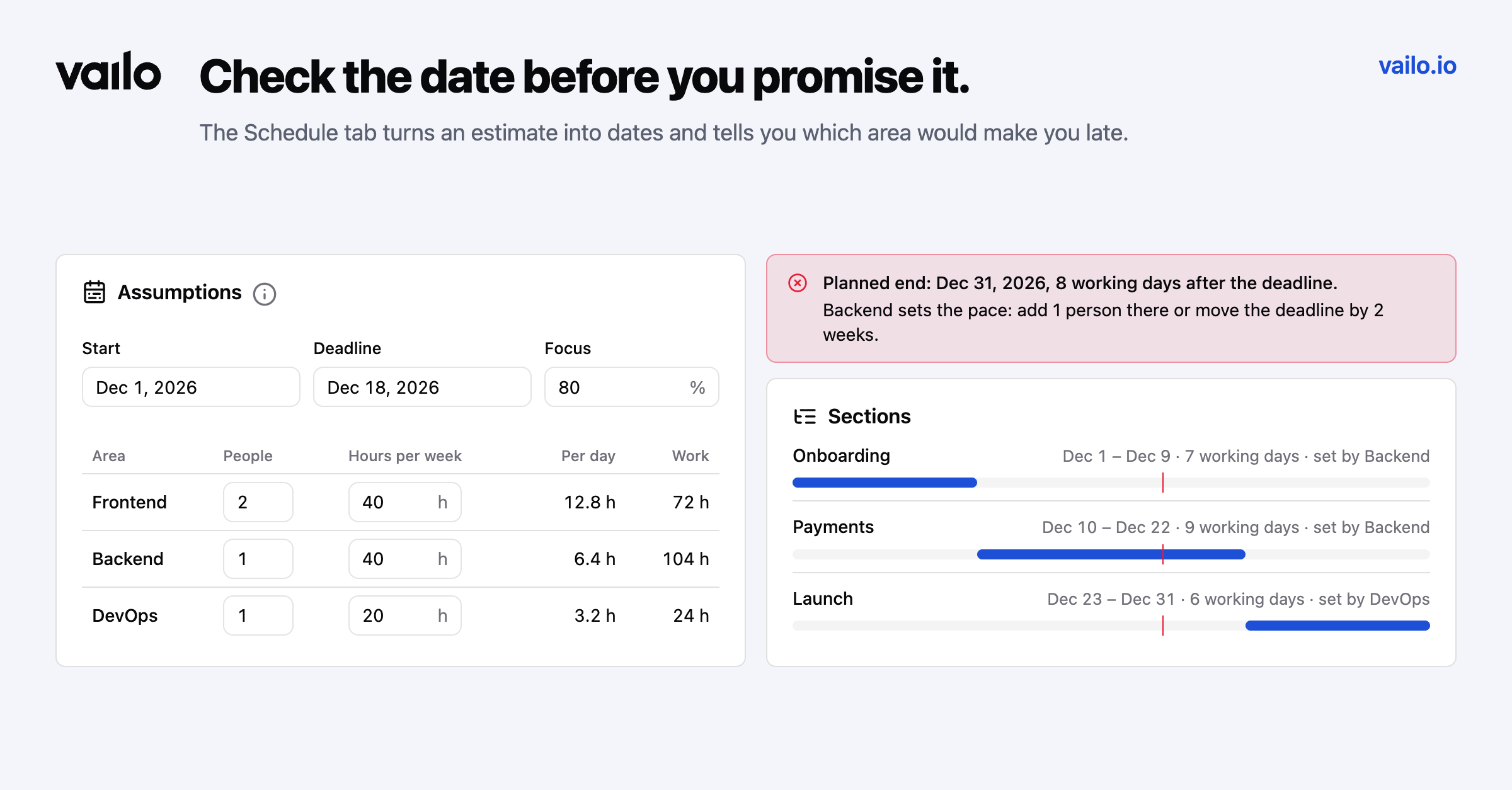
Set when the work starts, the client's deadline and the focus: the share of the week that goes to this project, since meetings, support and other work take the rest. Then, for each area, how many people and how many hours a week they have. Empty fields use the area's estimators and your workspace's weekly hours.
Sections and dates
The top-level sections of the estimate run one after another, or in parallel with the previous one. Vailo plans each from its hours and the capacity of every area, and skips weekends and your public holidays. You can move a section's dates by hand, and go back to the computed dates at any time.
When the plan doesn't fit
If the plan ends after the deadline, Vailo tells you by how many working days, and what would fix it:
Backend sets the pace: add 1 person there or move the deadline by 2 weeks.
If the start date has already passed before the offer is accepted, the tab says so, and Start today moves it.
Milestones in the offer
Offers can now show milestones taken from the schedule. You confirm and edit them for each draft version before the client sees them.