

Project phases and the Timeline view
Split a project into phases with dates, see them on a timeline, and know at a glance which phase is ahead, on track or behind.
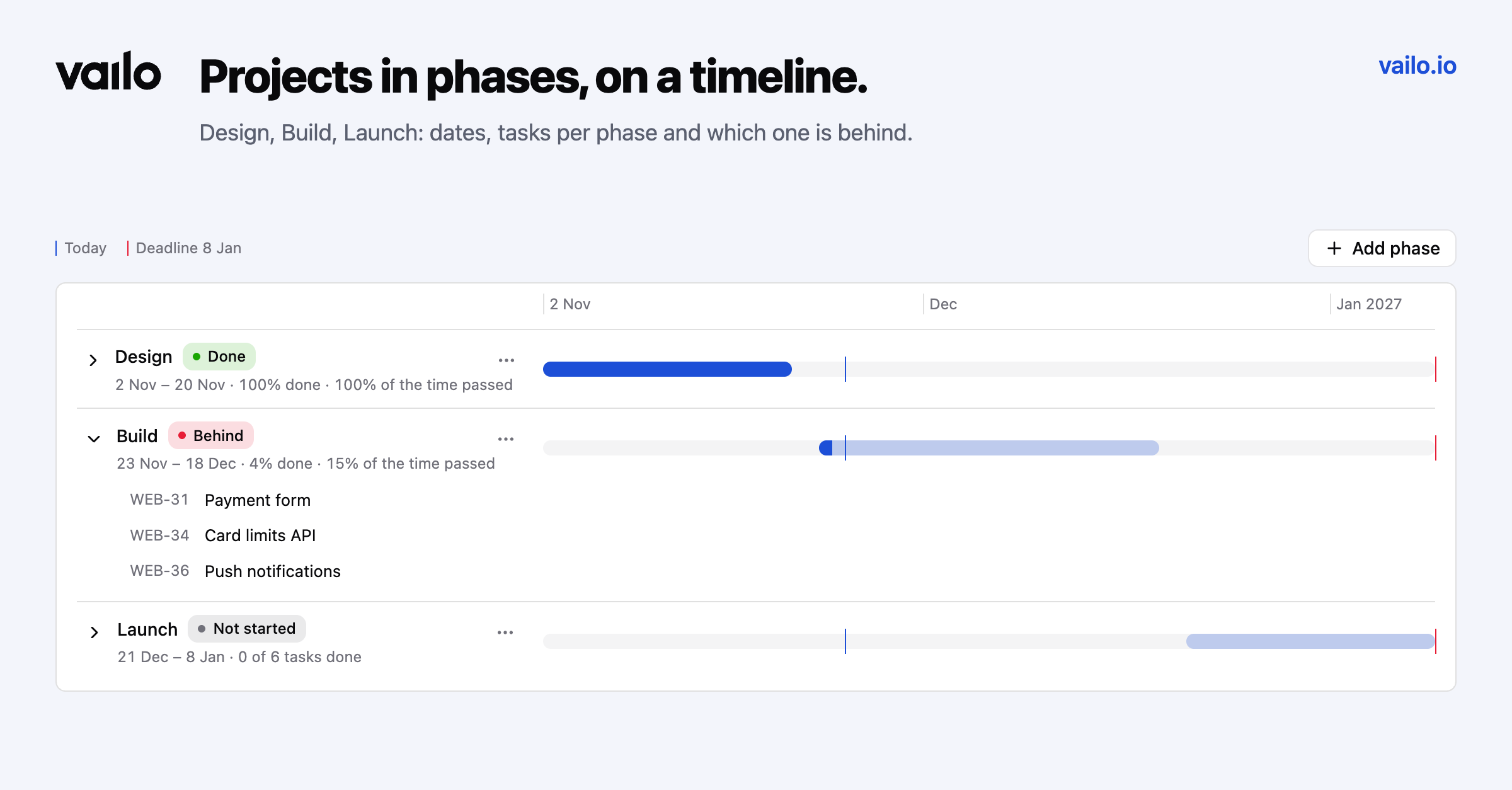
A project with 80 tasks is hard to read. A project with three phases isn't.
On Standard and Premium, you can now split a project into phases such as Design, Build and Launch.
Phases
Give each phase a start and an end, and put tasks into it with the new Phase field in the task details. Owners, admins, managers and the project's lead manage phases; everybody on the project sees them. Removing a phase keeps its tasks.
The Timeline view
The project's tasks have a new Timeline view: the phases on a time axis, with today, the deadline and the share of tasks done in each. Open a phase to see its tasks.
Each phase gets a status by comparing the share of its tasks that are done with the share of its working days that have passed: Ahead, On track or Behind.
Where we are
Projects with phases get a Where we are card on the overview: the current phase, its dates, tasks done and hours tracked, and the status of every phase.
From the estimate
A project created from an accepted offer gets a phase for every section of the estimate, with the dates of its schedule moved to the day the work starts. Projects already created from offers got their phases too.