

My time: your week, from draft to approved
The new My time page shows where your timesheet is, gives you one button to send it, and keeps favourite tasks in every week. Plus a personal time report.
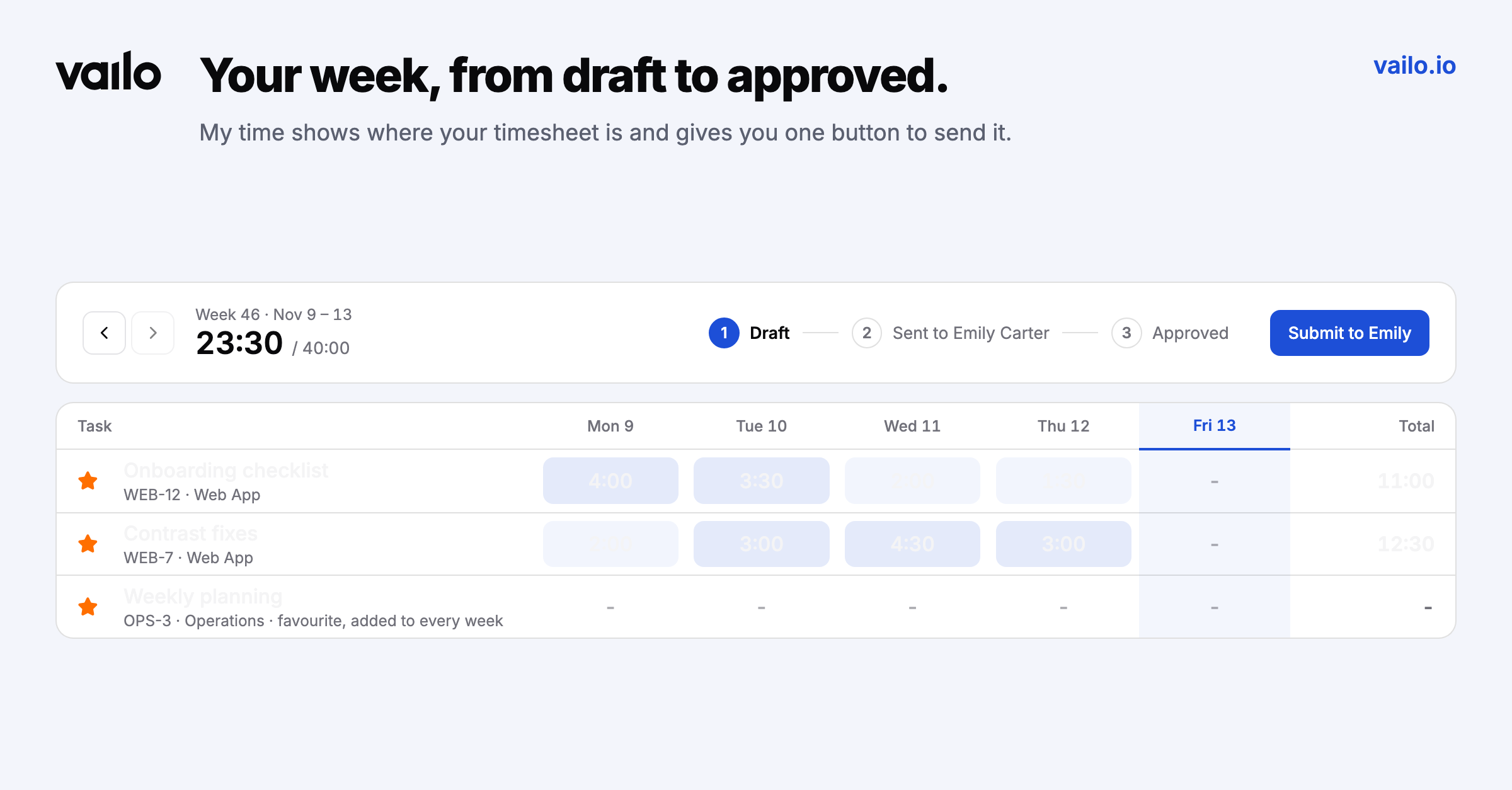
Where is my timesheet? Draft, sent, or approved?
The week on top
The new My time page answers it at the top of the week:
- arrows to move between weeks, and your hours against the target,
- the approval path: Draft, Sent to your approver, Approved,
- one button to send it. If your weeks go to one approver, it says Submit to Emily.
A rejected week stays flagged, with the reason, until you fix it, and it's open again for corrections.
A grid that stays put
- Favourite tasks: star a task and it shows in every week, even before you log time on it.
- Your own order: drag rows into the order you like, kept for every week. Rows no longer jump while you type.
- Copy last week's tasks adds the tasks you worked on last week in one click.
- Darker cells hold more time, and each day shows how far it is from the daily target.
My report
Your own time for a week, a month or any range, grouped by project or by day, with search, approved hours shown apart, CSV export and a printable version with signature lines.
What's waiting for you
The sidebar now shows a dot on Time tracking or Time off, and a count next to the page, when something waits: time off requests and timesheets to approve, or your own rejected timesheet to fix.