

From tracked hours to the client's bill
Clients, hourly rates, project budgets and a time report with Payroll and Project billing: Vailo now takes your team's hours all the way to what you pay and what you invoice.
Tracking hours was never the hard part. Turning them into an invoice was.
Vailo already knew who worked how long on which task. It did not know who the client was, what an hour costs or how much of the budget is left. That part usually lived in a spreadsheet. The newest release closes that gap.
Clients
Add the companies you work for in Settings > Clients, link a project to a client when you create it or in Project Settings, and filter the Projects list by client.
Hourly rates
In Settings > Rates, set a bill rate (what you charge the client) and a pay rate (what you pay a person), each with a valid-from date and one currency for the workspace. Bill rates can be set for a project, and for one person on one project.
A rate dated in the past also updates weeks that are not approved yet. Approved weeks keep the rate they were approved with. Only owners and finance managers see rates. Everyone sees their own pay rate in their profile.
Billed to the client, task by task
Owners, admins and finance managers decide what is invoiced: a switch for the whole project in Project Settings, and a Billed to client switch on single tasks. The change applies to hours already tracked, approved weeks included, and never affects pay. People tracking time do not see or choose it.
Project budgets
Give a project a budget in hours or in money and follow its usage on the project overview. You get a notification and an e-mail when it reaches 50, 75, 90 or 100% (you choose the steps). Money budgets are visible to owners and finance managers only.
The time report
Two views of the same hours:
- Payroll, per person: tracked, approved and not approved hours, leave and overtime.
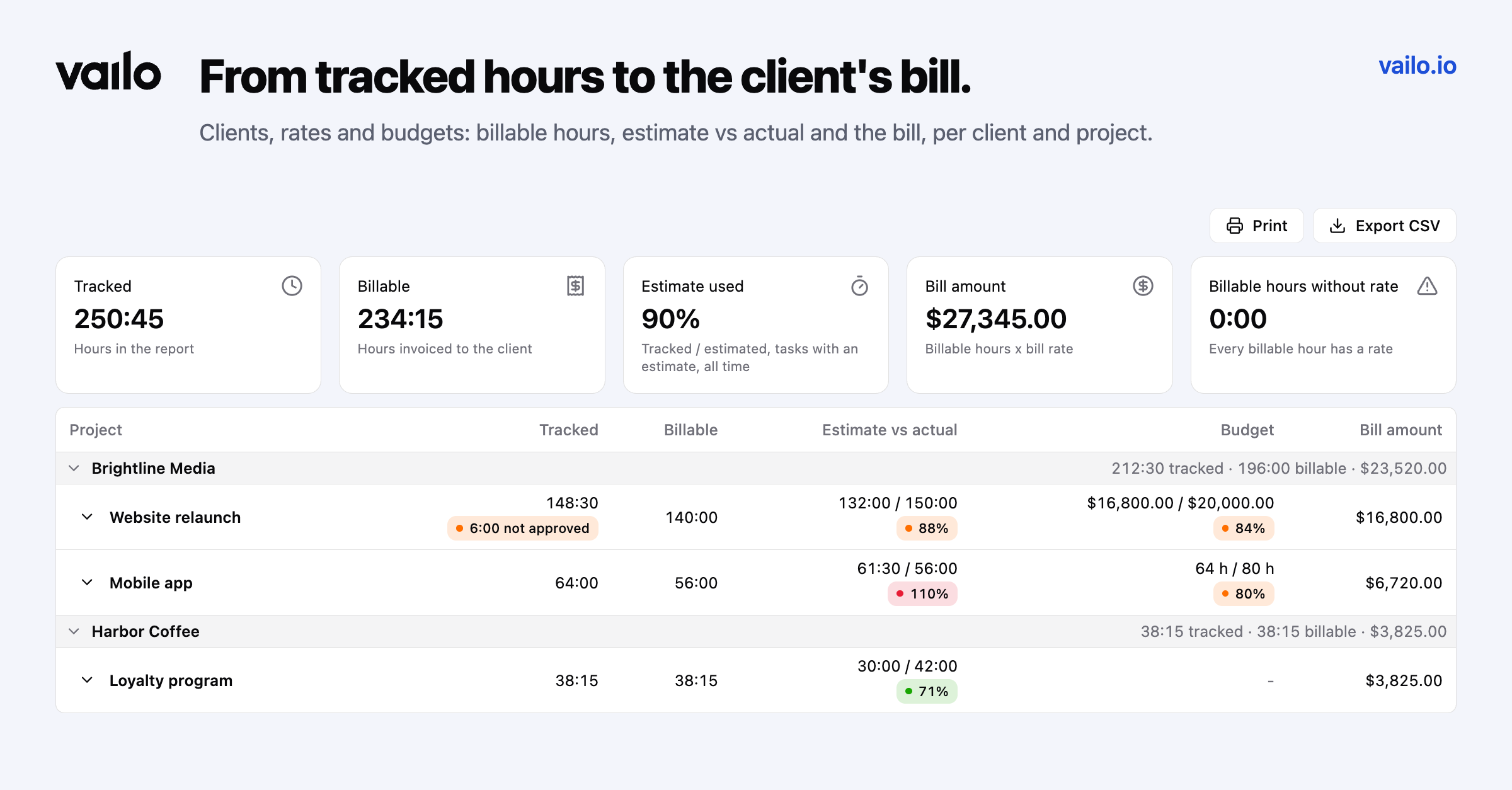
- Project billing, per client and project: billable hours, estimate vs actual, budget usage and, for owners and finance managers, the bill amount (billable hours x bill rate), with a warning when billable hours have no rate.
Approved and not approved hours always sit side by side, so you can see what is safe to pay or invoice. Export the exact rows on screen as CSV, or print them and save as PDF.
Your own earnings
If your employer set a pay rate for you, My report shows your hours x your pay rate for the period, split into approved and pending. You only ever see your own pay, never what the client is charged.
Plans
Clients, rates, budgets and the Time tab in a project's reports are on Standard and Premium. The time report across all people is on Premium.