

Deactivate members instead of removing them
For people who will be back: they cannot sign in, but their tasks, time and history stay, and you reactivate them in one click.
Someone leaves for a few months: parental leave, a sabbatical, a contractor between projects. Until now you could either remove them and lose the link to their work, or keep them as they were.
Now there's Deactivate, on every plan.
What deactivating does
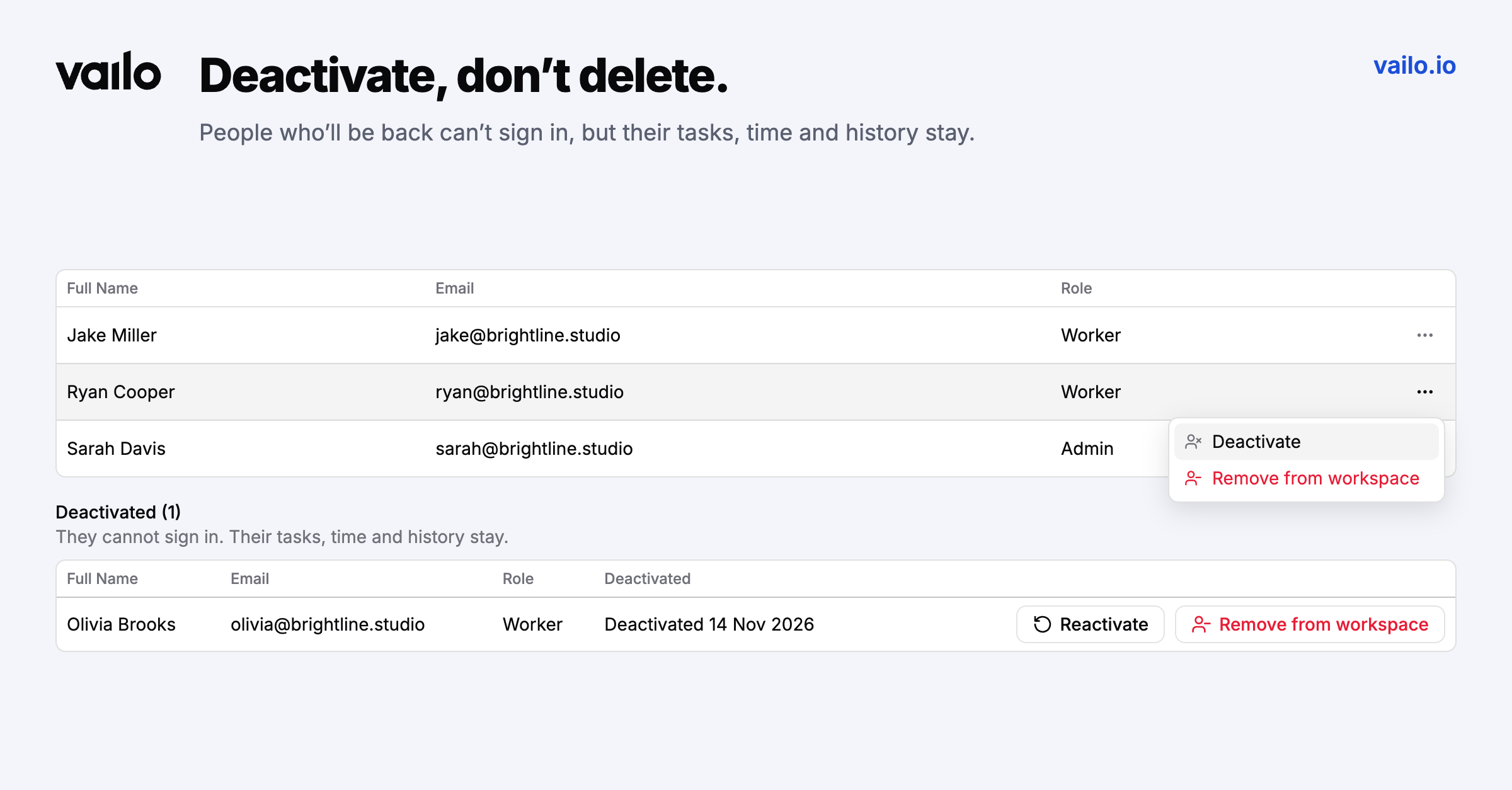
Open the … menu of a member in Members and choose Deactivate:
- they cannot sign in to the workspace until you reactivate them,
- their tasks, time entries, comments and history stay, and their name still shows on them,
- a running timer is stopped and its time saved,
- API keys they created stop working until they are back.
Reactivate
Deactivated members are listed under Deactivated in Members, each with Reactivate.
Plans and seats
On Free, deactivated members don't count toward the member limit, so reactivating needs a free place. On Standard and Premium, the seat stays on your subscription until you remove the member.
Who can do it
Owners, admins, managers and HR managers, never to themselves or to an owner. Only an owner or another admin can deactivate an admin. Deactivations and reactivations are recorded in the audit log.